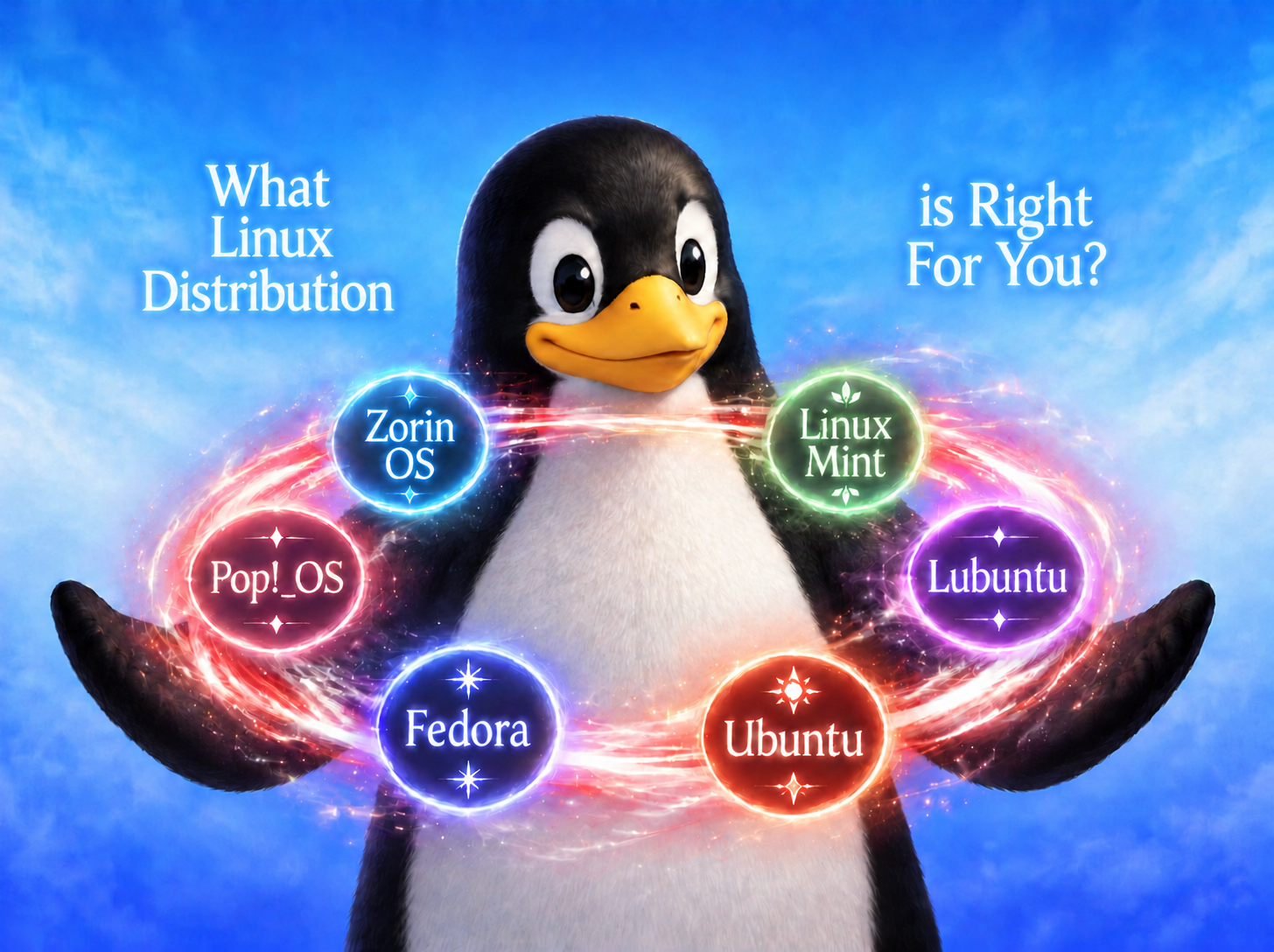
A practical guide to choosing the best Linux distro based on your computer, experience level, and goals.
Introduction
Windows isn’t what it used to be. Microsoft isn’t honoring privacy concerns and are requiring ongoing subscriptions for many basic applications that used to be free. Privacy is also a large concern, as Windows won’t even allow you to turn off telemetry (which means that Windows 11 is always sending data about you back to Microsoft servers). Thankfully there is an alternative in Linux. Many people have already migrated to Linux this year due to how easy it is to set up and in recent years there are more and more apps available that used to keep people stuck on Windows.
There are many versions (distributions) of Linux though; what distro should a person choose? Well, today I aim to answer that question. Today I cover which distribution that you should consider based on what your previous Linux experience, the activities you plan on doing the most and the strength of your hardware (the processing power of your CPU/GPU and RAM). Feel free to let me know in the comments below if you have suggestions of your own. Lets explore!
How to Figure Out the Best Linux Distro For You
Before you can decide the best Linux distro for you, its helpful to determine what you’re going to do with Linux. This is the most important question because it is the foundation for why you’re using Linux. Of course a lot of you may answer “To get away from Windows” and that’s a perfectly acceptable answer, but lets go deeper here: What apps and capabilities are you going to use? I’ll categorize the most common use cases and suggest distros from there:
Everyday Usage
If all you’ll use your PC for is basic web browsing, email, online shopping, word processing, spreadsheets, etc. then you’ll likely be most comfortable with Linux distributions that offer the most Windows like experience including a “Start Menu” like app launcher with a system tray in the lower left that has your time, Wi-Fi connectivity, etc. These ones are the best options.
The “I just want my computer to work” people
Consider these options if you just need a computer to get basic tasks done. These options are also good to consider if you want the most Windows like experience possible. People in this category probably have an average CPU and modest amount of RAM and probably don’t have a GPU or may have an older one that lacks the processing power of today’s GPUs.
Zorin OS
My personal favorite that I’ve tried so far is Zorin OS. It is a distribution that is based on Ubuntu which is one of the most well known Linux distributions out there. The strength of Zorin OS is that it aims to be most Windows like, so for people switching from Windows they will find the experience quite familiar as you see below


As you can see, Zorin OS is a great choice for those beginning their Linux journey. If you have a very old laptop that you’d like to use (weak or old CPU/GPU or no GPU), Zorin OS is great for these situations as well. Zorin does have two versions, a Pro version which costs $49 but includes additional desktop layouts, creation software for photo, video, audio and animation editing. Also included are additional productivity tools and personal tech support directly from the Zorin team. There is a free version called Zorin OS core, too. Visit Zorin’s download site to download the OS and try it out!
Linux Mint
The other noteworthy Linux flavor to investigate is Linux Mint. If I didn’t enjoy Zorin so much, Mint would be the flavor I’d recommend to all beginners because it also runs just like Windows and also looks . . . really . . . GOOD. Like Zorin, it looks and operates just like Zorin and even has a lite version called “Xfce Edition” in case your laptop is extra old and/or has very little RAM and/or a weak CPU.


As you can see, Linux Mint is another fantastic option for those wanting to switch to Linux that want a familiar Windows-Like setup. To download Linux mind, visit their downloads page.
Lubuntu
Some of you may have heard of Ubuntu (more on Ubuntu later in the article) but there is a version of Ubuntu called Lubuntu, which is designed for old or less powerful computers and for those who want a fast, responsive desktop experience. The desktop system that Lubuntu uses is called LXQT, known for being fast and lightweight because it doesn’t require a powerful CPU/GPU to work quickly. Normal Ubuntu, by comparison, uses a desktop system called GNOME which is more resource hungry but still useful for those with the computing power to match. Let’s take a look at Lubuntu firsthand.


To download Lubuntu, you can visit their downloads page.
Next Use Case: Computing Hobbyist
If you’re a PC user who knows enough about PCs that you enjoying tinkering but wouldn’t consider yourself a full on professional, Linux has a flavor for that too! It is called Ubuntu. Ubuntu can run fairly well even on old hardware but it is best to have a computer with a mid range CPU and hopefully a GPU, even if the GPU isn’t very strong, as Ubuntu does require more processing power than the systems we talked about in the earlier section.
Ubuntu
To be honest, beginners can use Ubuntu as well, but I wouldn’t recommend Ubuntu for someone with a very old or weak PC as Ubuntu needs a little more computing power than what an old laptop can provide
It is a full Linux operating system that is accessible for the curious but also available for the person who wants to grow. It doesn’t make it hard to learn Linux but it is strong enough to challenge those who want to learn and master new Linux concepts and capabilities. If you’re coming from Windows and have an open mind and don’t mind a mental workout as you get used to Linux, Ubuntu is for you. Lets take a look at Ubuntu:


Ubuntu is actually what the previous three systems that we’ve discussed are built on, so if you start with one of the previous three and want to move up to a more advanced system, Ubuntu would be a natural step. To download Ubuntu Desktop and start your journey, visit their download page.
Next Use Case: Content Creator
Linux has great options for Content Creators. People in this category would be needing some sort of video/audio/software editing software, which automatically requires a stronger CPU, more RAM and certainly as robust a GPU as their budget allows. If your PC doesn’t meet these recommendations it would be best to boot into either of the next two systems off of a bootable USB and test them to make sure your computer can handle them. We will look at two Linux variants here but there are many more that content creators and/or software developers can use and love.
Content Creation: Fedora
If your passion is creating video, audio, graphic design or anything like this, then Fedora is a great option for you. There are many reasons that Fedora is so good for content creators. They include:
- PipeWire
- Application updates arrive faster
- OBS works fantastically
- Color and HDR Support

Pipewire
PipeWire is the digital plumbing that helps make Fedora so useful. For content creators, especially those who create audio/video content for publishing, they typically have a lot going on when they create content. They have multiple channels running on their computer involving audio, video, chat from other platforms (Discord, gamechat, etc.) and could even have multiple apps running that each need access to one or more of these streams. The PipeWire detects when the user adds a new media stream (such as when a webcam, microphone or other media peripheral is connected) and makes it easy for other applications to use the media stream. Think of PipeWire as a digital conductor that directs media streams to where they need to go. This is very important for a creators workflow.

Application Updates
With Fedora, important application updates arrive fast for important creator apps such as Blender, GIMP, OBS Davinci and even PipeWire. For creators to remain competitive in their chosen niche, it helps to have rapid software updates to take advantage of new features. Additionally, this helps maintain proper hardware support and GPU performance which are also very important.
OBS
OBS (Open Broadcaster Software) is another common tool used by creators. Fedora uses Wayland, PipeWire and xdg-desktop-portal to help OBS work fantastically well. Wayland is a specification that governs how applications work with display and input devices. When a program like OBS wants to use display output within itself, Wayland helps make it happen. Fedora also uses xdg-desktop-portal, which is a service that integrates desktop application permissions. For example, if an app (like OBS) wants to access a device or media stream, Wayland will allow it as long as the user approves it when xdg-desktop-portal generates a dialog asking the user to allow or deny OBS access to the media stream.

Color and HDR Support
For photographers, filmakers and other high end production professionals, Fedora is known for advanced HDR capabilities. Normally Windows and macOS hold the title as destination OS’s for this category but Fedora has helped Linux gain ground. If you think that Fedora is worth a try for your workflow, visit their downloads page to get started.
Good idea for Gamers: Pop!_OS
Note: Pop!_OS is not the only Distro that’s good for gaming. Honestly you could use most Linux distros for it as long as your CPU/GPU and RAM are very strong and high end. This is just an example of a gaming appropriate distro. Feel free to let me know in the comments if you like a different distro for gaming, thanks!
Pop!_OS is a great Linux distribution for gamers. Gamers are most likely going to have and/or need a very powerful CPU, lots of RAM and a very powerful GPU to handle the heavy load of rendering the graphics of today’s high games (which continuously require more processing power as game developers innovate and make even more immersive games every year).
Pop!_OS was created by a company called System76. Their corporate goals are to provide Linux distributions, computers, laptops, keyboards and more to help people not only enjoy computing, but not be held back by constant built in monitoring and other issues that we face today. Pop!_OS includes support for NVIDIA, Proton and good performance capabilities that most gamers are interested in. They want the user to feel like they truly own their computer including the software and the hardware. I’m not affiliated with System76 but their mission seems pretty cool, you should check them out. Let’s dive into Pop!_OS and see what we can discover!

Up till now I’ve shown you many screenshots of the app launcher, web browsing, etc. but here I’ll just say that this system is a Linux system so it can do all of those things. What I do want to show you are some of the more gaming specific uses. Pop!_OS uses the COSMIC store.

What you see in the above image is the COSMIC store. COSMIC is a desktop environment meant to improve productivity in the most efficient way possible. It is crash resistant, customizable and also developer friendly.

In the image above you can see the NVIDIA X Server Settings app that lets you configure the best settings for NVIDIA hardware to use with Pop!_OS. If you’re a gamer (especially one that uses NVIDIA hardware), Pop!_OS might be for you.
Wrap Up
In this article we discussed Linux options based on the strength of your computers processing power and your use case. Discussed distros included Zorin OS, a very useful Windows like system for those who just want their computer to work well without too much configuring. We walked about Ubuntu, a great middle ground and probably where most people would end up because it is a great all around Linux distro, especially for newcomers. Lastly, we discussed Fedora for content creators and Pop!_OS for gamers. I hope you gained knowledge and insight as to where to go in your Linux journey. Feel free to comment below if you have any questions and thank you so very much for your time!
If this article has helped you in any way, would you consider donating to the site to help support my work? You can donate as little as 1 dollar USD. Thank you for your time!
Make a one-time donation
Make a monthly donation
Make a yearly donation
Choose an amount
Or enter a custom amount
Your contribution is appreciated.
Your contribution is appreciated.
Your contribution is appreciated.
Leave a Reply